Let your customers reply with one tap: WhatsApp buttons in sendify
October 23, 2026
Jovan Lopez
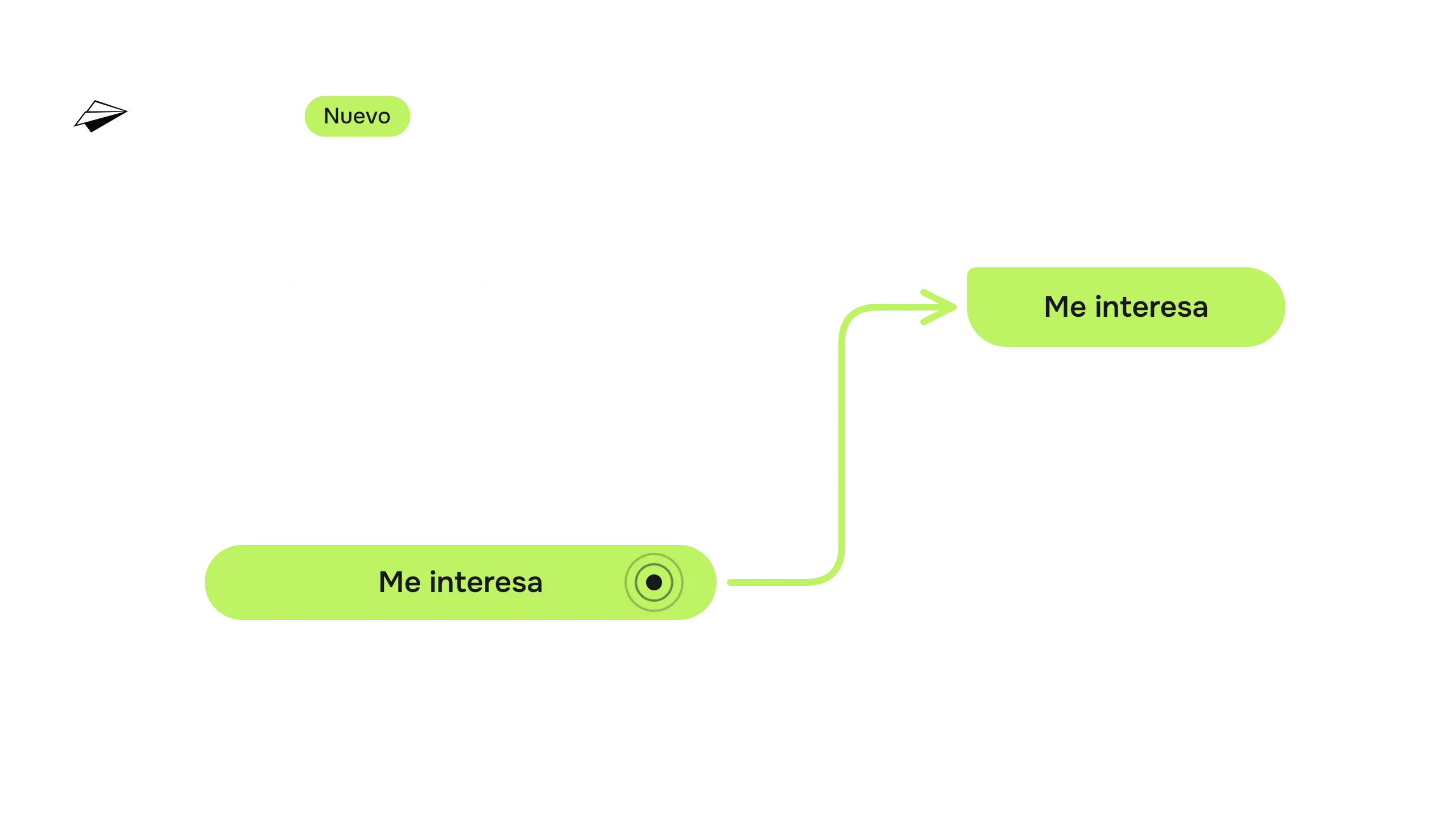
When a customer likes your offer, they still have to write back: open the chat, think of what to say and type it. Many leave it for later and never come back.
With the new WhatsApp buttons in sendify, replying takes one tap. Under your message you add up to three buttons: one to say “I’m interested”, one to open your store, one to copy their coupon or call you. Your customer taps, and that’s it.
Here is how to set them up, step by step. The sendify interface is in Spanish, so each label below comes with its English meaning.
Before you start: update sendify
Buttons come with the latest version of sendify. If you installed it from the Microsoft Store, open the Store, go to Library and click Get updates. Then open sendify again.
Don’t have it yet? Download it from the Microsoft Store.
1. Write your message
In the Mensaje (Message) tab, write what you want to say, as usual. Use the data from your list, like {Nombre} (name) or {Cupón} (coupon), so every customer gets their own.
Under the message you’ll see a new option: Agregar botón de WhatsApp (Add WhatsApp button).
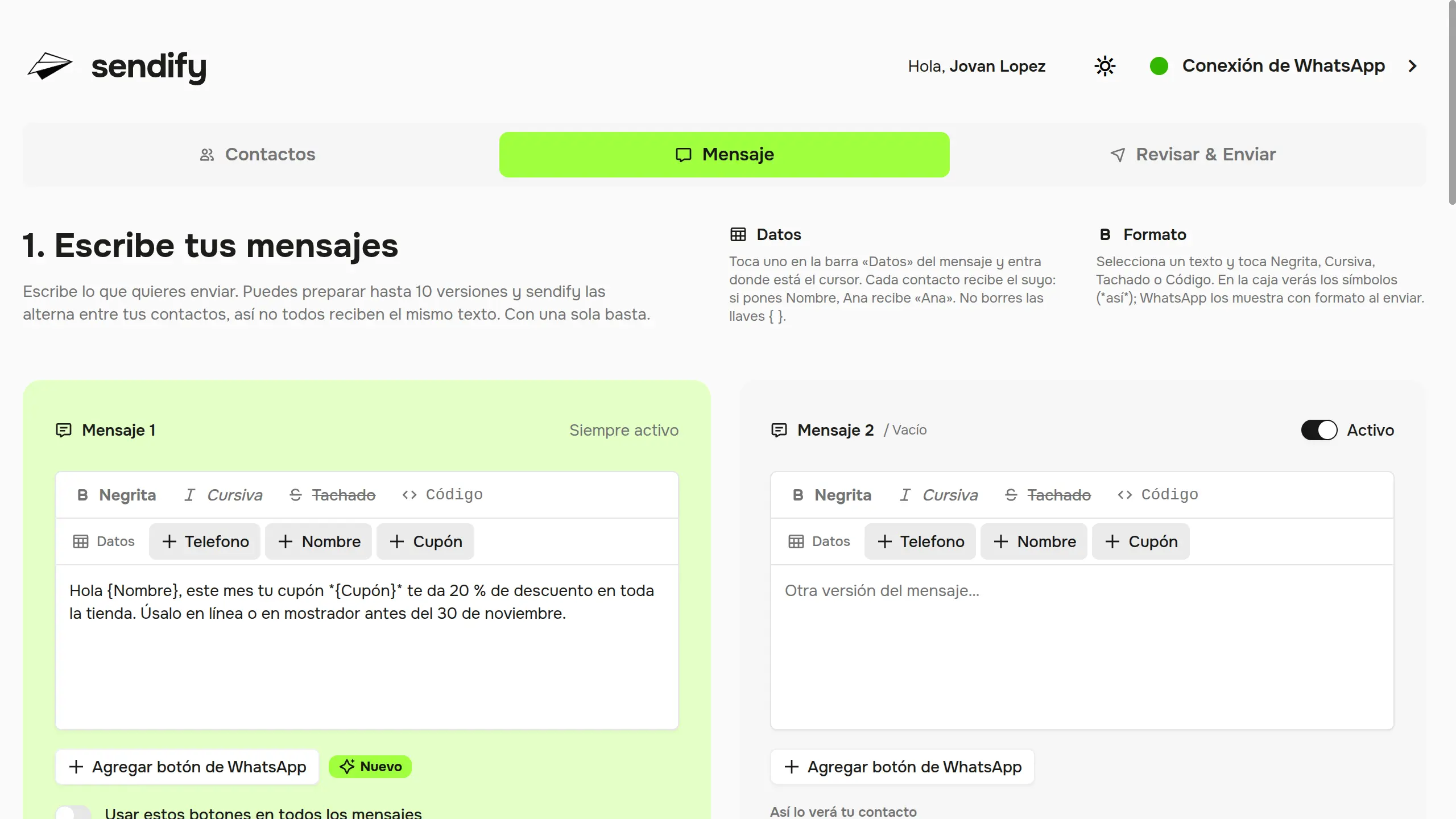
Buttons always go with text. If the message is empty, sendify asks you to write it before sending.
2. Click «Agregar botón de WhatsApp»
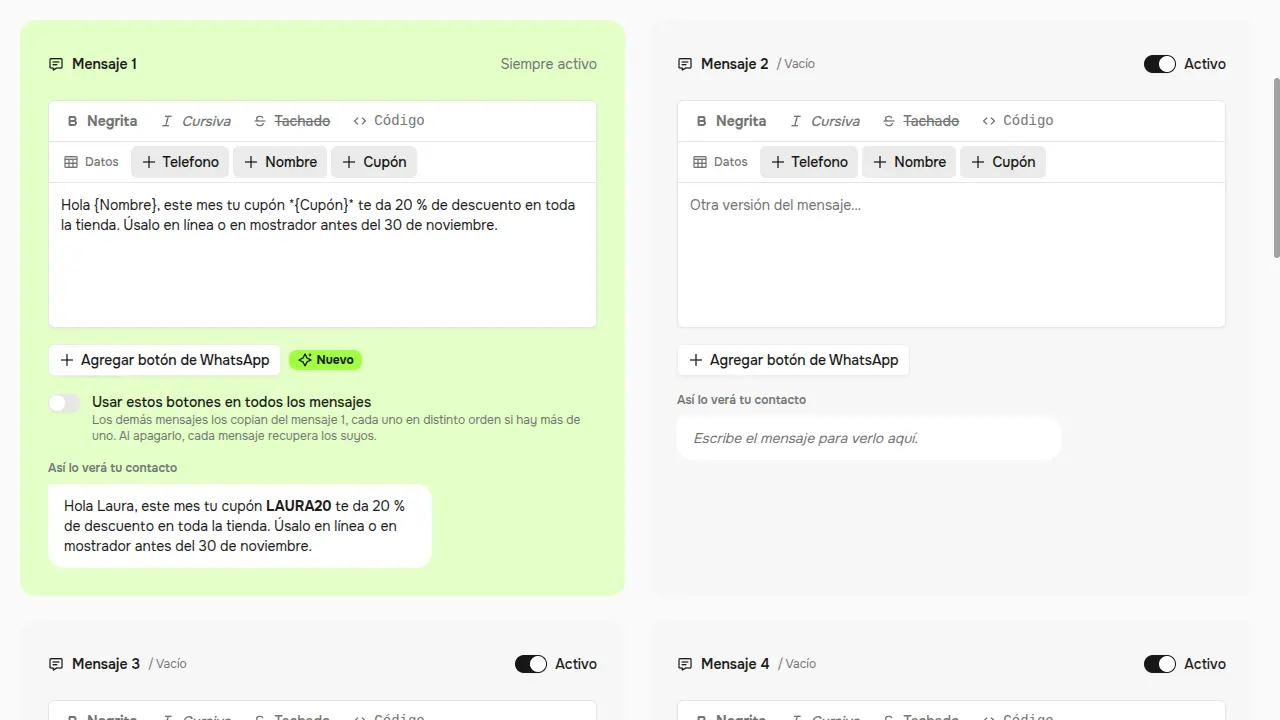
A window opens with everything you need. On the left you build your buttons; on the right you see Así lo verá tu contacto (how your contact will see it), filled in with your first contact’s data.
3. Choose what happens when they tap it
There are four button types:
- Respuesta rápida (Quick reply): your customer replies with the button’s text. Good for “I’m interested” or “Yes, save it for me”.
- Abrir enlace (Open link): opens a page, like your catalog, online store or a form.
- Copiar código (Copy code): copies a piece of text to their phone, like a discount coupon or bank details for a payment.
- Llamar (Call): opens your customer’s dialer with your number ready to call.
4. Write the button text
This is what your customer reads on the button. Keep it short, 20 characters or less, because WhatsApp cuts longer labels.
Depending on the type, sendify asks for one more detail:
- For Abrir enlace, the page address. It must start with https://.
- For Copiar código, the text that will be copied.
- For Llamar, your number with the country code (+52 for Mexico). If you want, sendify uses the number of the WhatsApp account you have connected.
You can use your list data here too. In the example, the Copiar mi cupón (Copy my coupon) button copies {Cupón}: Laura copies LAURA20 and Daniel copies DANIEL20.
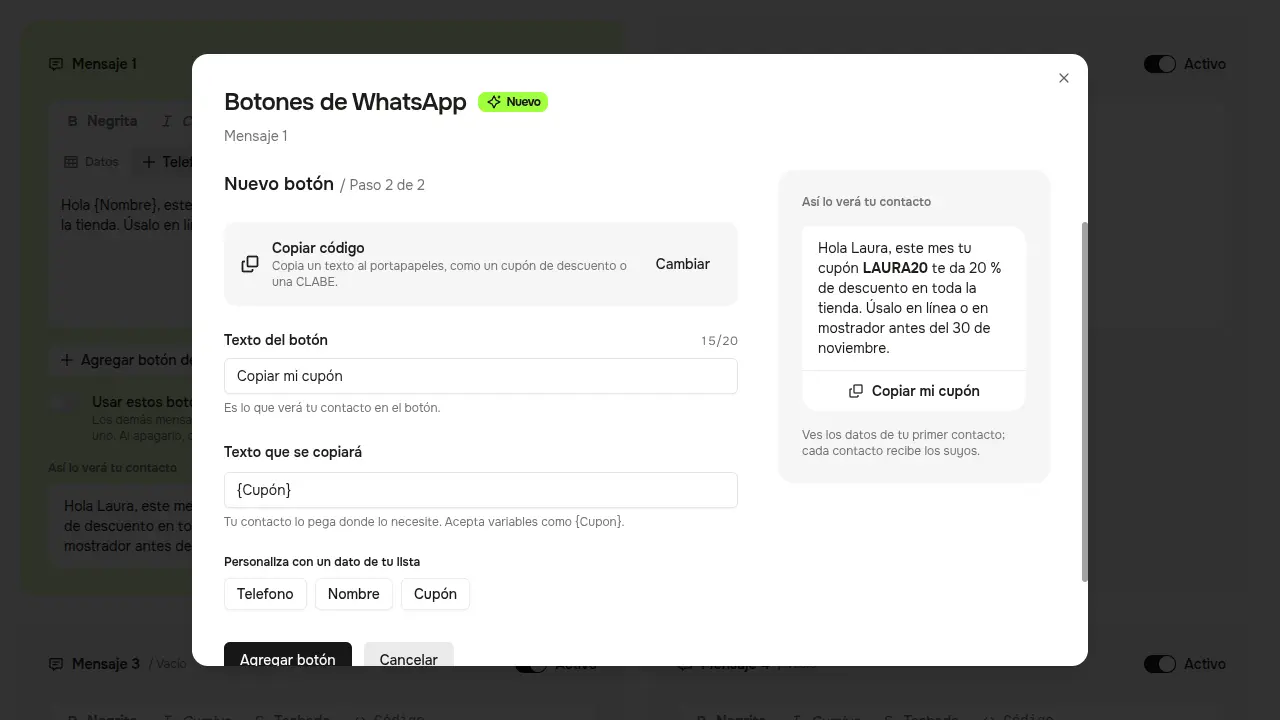
5. Add up to three buttons
Click Agregar botón (Add button) and repeat. You can mix types: the example has one to copy the coupon, one to see the store and one to say “I’m interested”. You can edit or delete each one from the list.
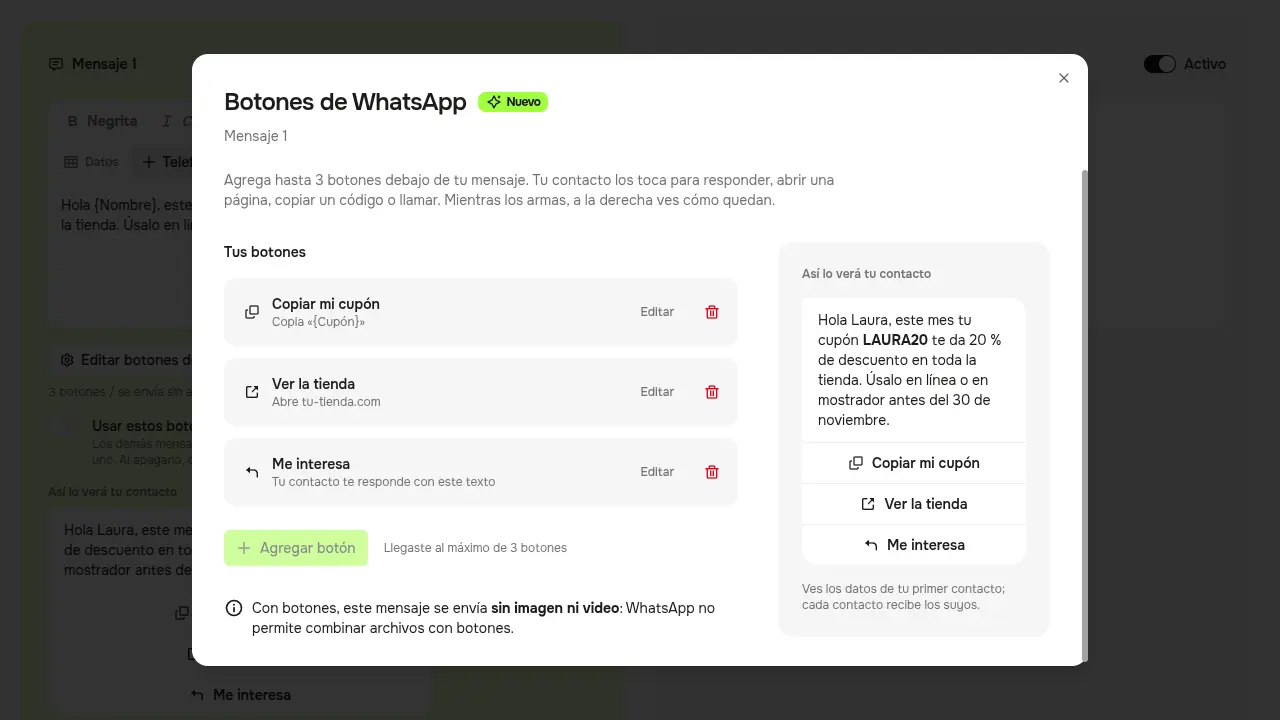
6. Check your message
When you close the window, your buttons show up under the message, in the preview. You can edit or remove them from there.
Have several versions of the message? Turn on Usar estos botones en todos los mensajes (Use these buttons in all messages) and the others copy message 1’s buttons, each in a different order. Turn it off and every message gets its own buttons back.
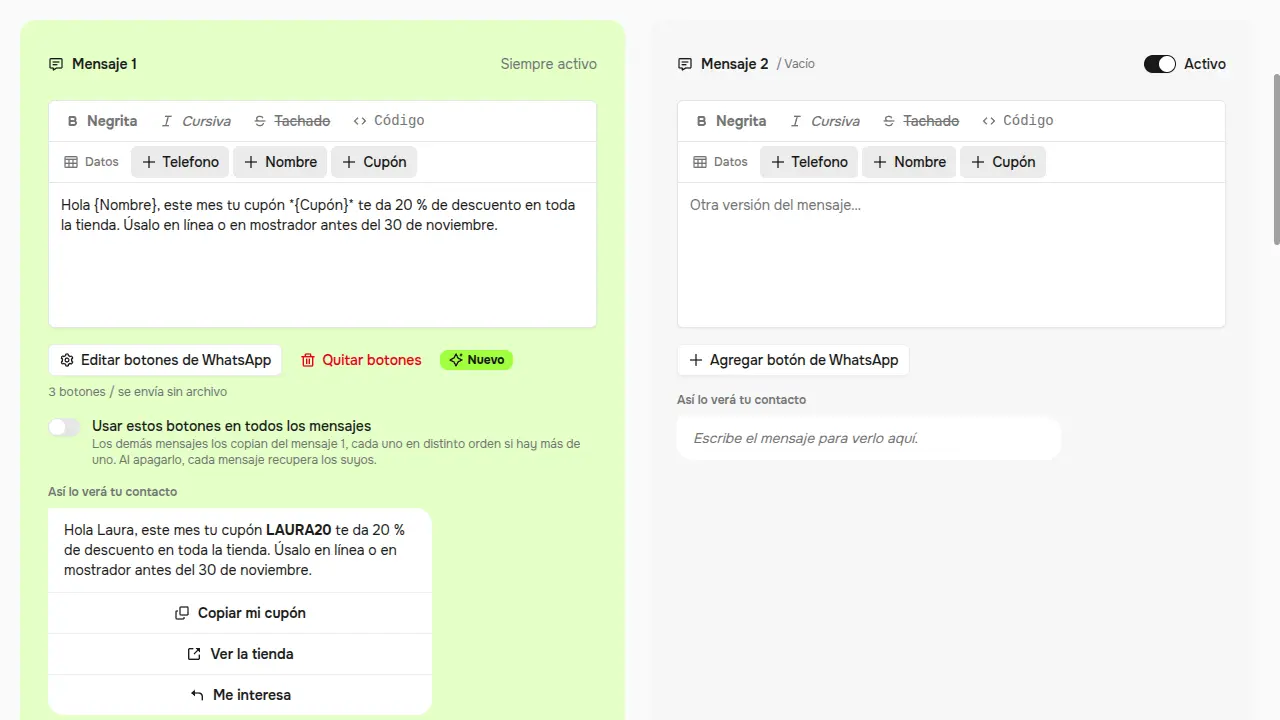
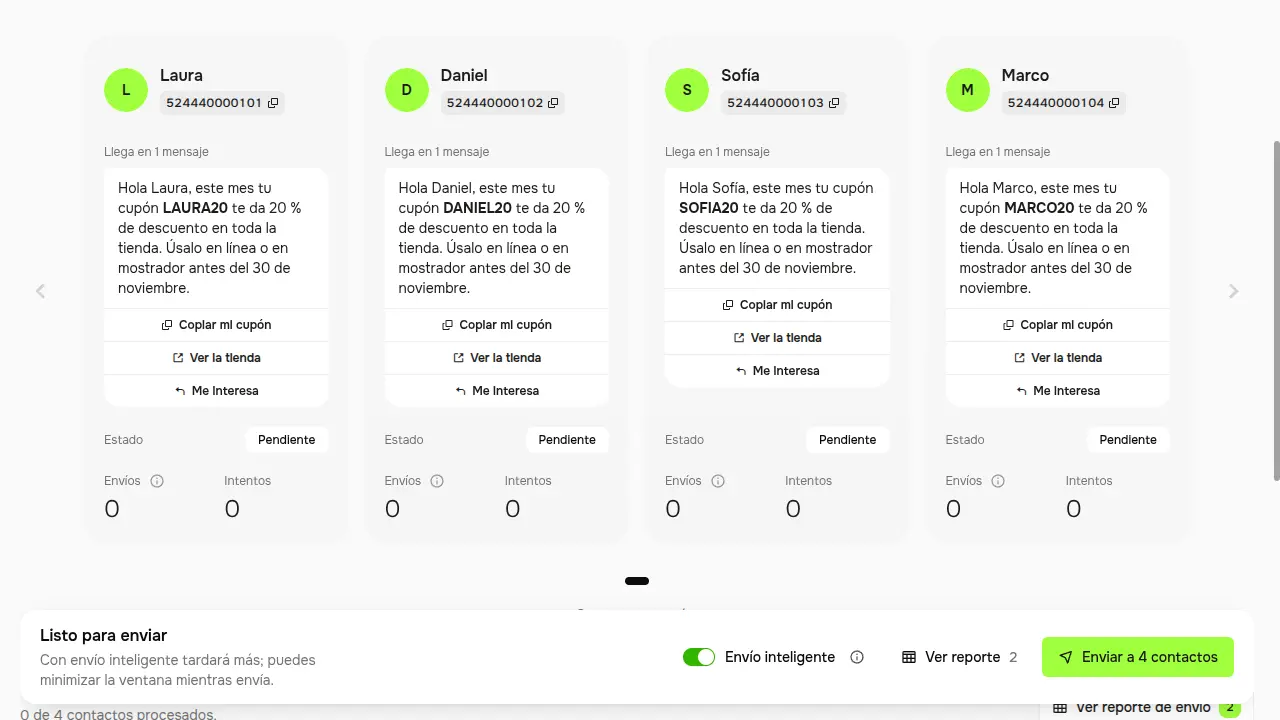
7. Review and send
In Revisar & Enviar (Review & Send) you see each contact’s message, with their buttons and their data, before it goes out. If something is missing, like a link without https://, sendify tells you which button to check. When everything looks right, send as usual.
Good to know
- A message with buttons is sent without image or video. WhatsApp doesn’t allow files and buttons together. If your offer needs the photo, send it in a message without buttons.
- You can add up to three buttons per message.
- Buttons always go with text.
- Links start with https:// and phone numbers include the country code.
Ideas to try
- Your monthly offer with Copy my coupon and See the store.
- A “your order is ready” notice with I’ll come today and Call.
- An invitation with I’m interested, so you know who’s coming.
Update sendify and try it
Your customers already read your messages. Now replying takes them one tap. Update sendify and build your first message with buttons.